
Introduction
Artificial Intelligence is transforming the way we research, learn, and organize information. One of Google’s most powerful AI tools is NotebookLM, an AI-powered research assistant designed to help users understand and work with their own documents.
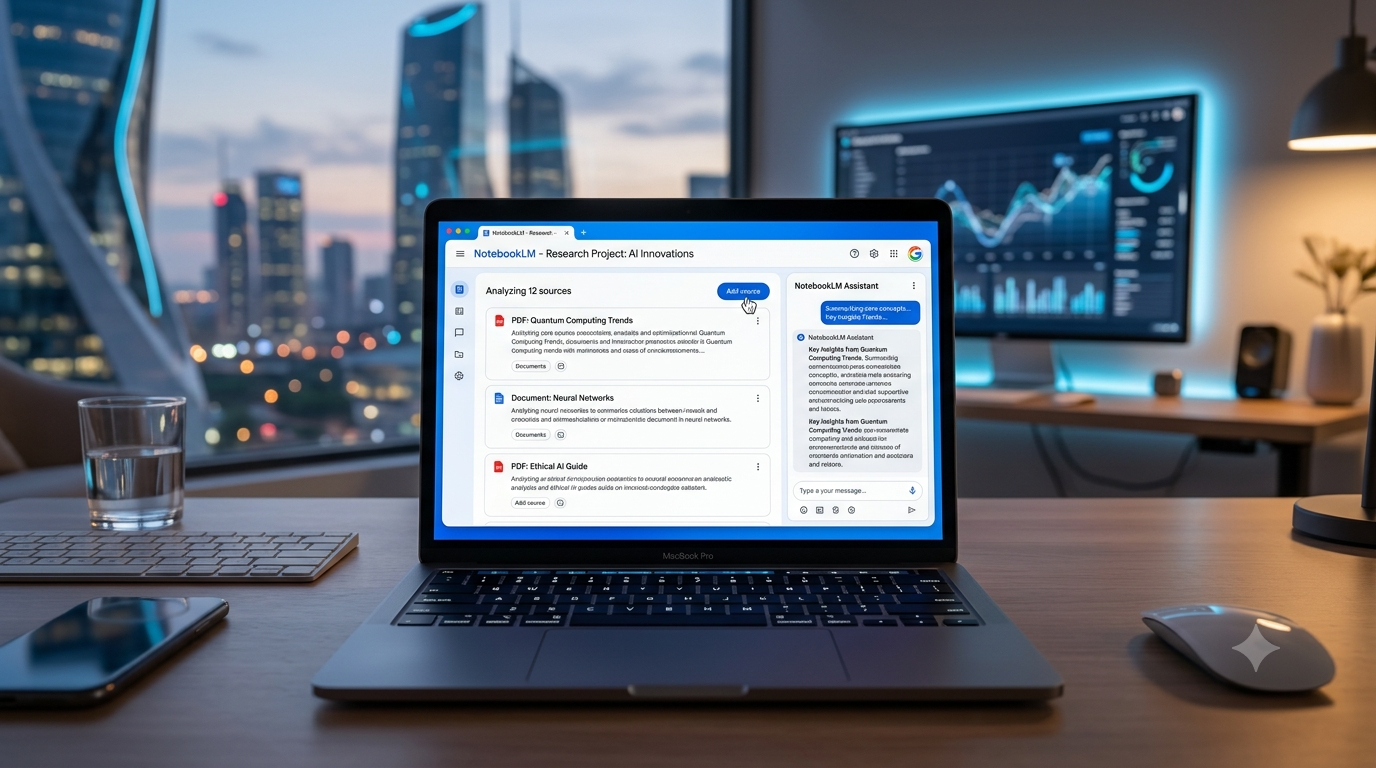
Unlike traditional AI chatbots, NotebookLM focuses on your personal sources, including PDFs, documents, notes, and web pages. It can summarize information, answer questions, generate study guides, and even help create content based on your uploaded materials.
In this guide, you’ll learn exactly how to use NotebookLM by Google step by step and discover why it has become one of the most useful AI productivity tools in 2026.
What Is NotebookLM?

NotebookLM is an AI-powered note-taking and research assistant developed by Google.
The platform allows users to upload their own sources and then ask questions, generate summaries, and create content directly from those materials.
You can upload:
- PDFs
- Google Docs
- Text files
- Website links
- Research papers
- Notes and documents
NotebookLM then uses those sources as the foundation for its responses.
Why Use NotebookLM?
NotebookLM offers several advantages:
- Faster research
- Better organization
- AI-generated summaries
- Question answering
- Study guide creation
- Content generation
- Source-based responses
It is especially useful for students, researchers, writers, and professionals.
Step 1: Open NotebookLM
Visit Google’s NotebookLM website and sign in using your Google account.
After signing in, click:
Create New Notebook
This is where you’ll store your documents and research materials.
Step 2: Add Your Sources
The next step is uploading your information.
You can add:
- PDFs
- Google Docs
- Text documents
- Website URLs
- Research papers
- Notes
NotebookLM will analyze these materials and prepare them for AI interactions.
Step 3: Ask Questions About Your Documents
One of NotebookLM’s best features is its ability to answer questions using your uploaded sources.
Examples include:
- Summarize this document.
- What are the key points?
- Explain this topic simply.
- Find important statistics.
- Create study notes.
The responses are based directly on your documents instead of general internet knowledge.
Step 4: Generate Summaries
NotebookLM can quickly create:
- Article summaries
- Meeting notes
- Research overviews
- Key takeaways
- Executive summaries
This saves hours of reading and note-taking.
Step 5: Create Study Guides
Students can use NotebookLM to generate:
- Study notes
- Flashcards
- Practice questions
- Topic explanations
- Revision materials
This makes learning faster and more organized.
Step 6: Generate Content
NotebookLM can also help create:
- Blog outlines
- Reports
- Presentations
- Research summaries
- Project notes
Because it uses your sources, the generated content stays relevant and accurate.
Step 7: Organize Your Research
Create multiple notebooks for different projects.
For example:
- Work projects
- University research
- Client documents
- Personal learning
- Content creation
Organized notebooks make information easier to manage.
Best Ways to Use NotebookLM
For Students
- Study notes
- Exam preparation
- Research assistance
For Professionals
- Meeting summaries
- Document analysis
- Project research
For Content Creators
- Blog research
- Content planning
- Idea organization
For Researchers
- Literature reviews
- Research summaries
- Data organization
Benefits of NotebookLM
Save Time
Analyze large documents within minutes.
Better Understanding
Get simplified explanations of complex topics.
Improved Organization
Keep all research materials in one place.
Accurate Responses
Receive answers based on your own sources.
Increased Productivity
Spend less time searching and more time learning.
Common Mistakes to Avoid

Avoid these mistakes:
- Uploading incomplete documents
- Ignoring source quality
- Relying entirely on AI without verification
- Asking vague questions
- Using outdated materials
Always review AI-generated responses before using them professionally.
The Future of NotebookLM
Google continues to improve NotebookLM with:
- Better document understanding
- Smarter summaries
- Improved collaboration features
- More file support
- Advanced research tools
It is quickly becoming one of the most powerful AI productivity tools available.
Final Thoughts
NotebookLM by Google is more than just an AI chatbot. It is a research assistant designed to help users understand and organize their own information.
Whether you’re a student, writer, business professional, or researcher, NotebookLM can dramatically improve productivity by simplifying research, summarizing documents, and generating useful insights from your sources.
If you work with large amounts of information, NotebookLM is definitely worth trying in 2026.
FAQ
Is NotebookLM free?
Google offers NotebookLM with free access, although some features may change depending on future plans.
What files can I upload to NotebookLM?
You can upload PDFs, Google Docs, text files, notes, and website links.
Can NotebookLM summarize PDFs?
Yes. NotebookLM can analyze and summarize PDF documents quickly.
Is NotebookLM better than ChatGPT?
NotebookLM and ChatGPT serve different purposes. NotebookLM specializes in working with your personal documents and research sources, while ChatGPT is a more general AI assistant.
Nice perspective on the topic. You may find Pixwit useful — . Pixwit
Obrigado! The Choicer Voicer: sem baixar nada. The Choicer Voicer